

Need a quick decision from your team? Create a poll in Microsoft Teams with Easy Poll: add the app to your channel, enter a question and answer options, then post the poll for colleagues to vote on.
The poll stays in the conversation, so everyone can respond without leaving Teams. You get clear answers without counting replies or piecing together a long chat thread.
This guide shows the full workflow with a team lunch poll, from adding Easy Poll to casting the first vote. Once you've tried it, use the same approach for meeting times, feedback, and project decisions.
Why use a poll in Microsoft Teams?
A question in chat can quickly turn into twenty replies. Messages get buried, answers arrive in different formats, and you still have to work out what the team wants. A poll puts the question and choices in one place.
Clear answers
Give everyone the same choices instead of trying to compare scattered replies.
Easy participation
Let colleagues vote where they're already talking, directly inside Microsoft Teams.
A result you can use
See what your team prefers and turn their input into a decision.
For quick feedback, a single-question poll can give you the input you need without asking colleagues to fill out a longer survey. Start with a clear question that people can answer in a few seconds.
Create a Teams poll step by step
We'll create a simple poll in a Teams channel. Use this lunch question to try the process, or replace it with a decision your team needs to make.
What should we order for team lunch?
- Pizza
- Sushi
- Salad bowls
- Sandwiches
Add Easy Poll to your Teams channel
Open the Microsoft Teams channel where you want to post your poll. Choose the channel where the people involved in the decision already work together.
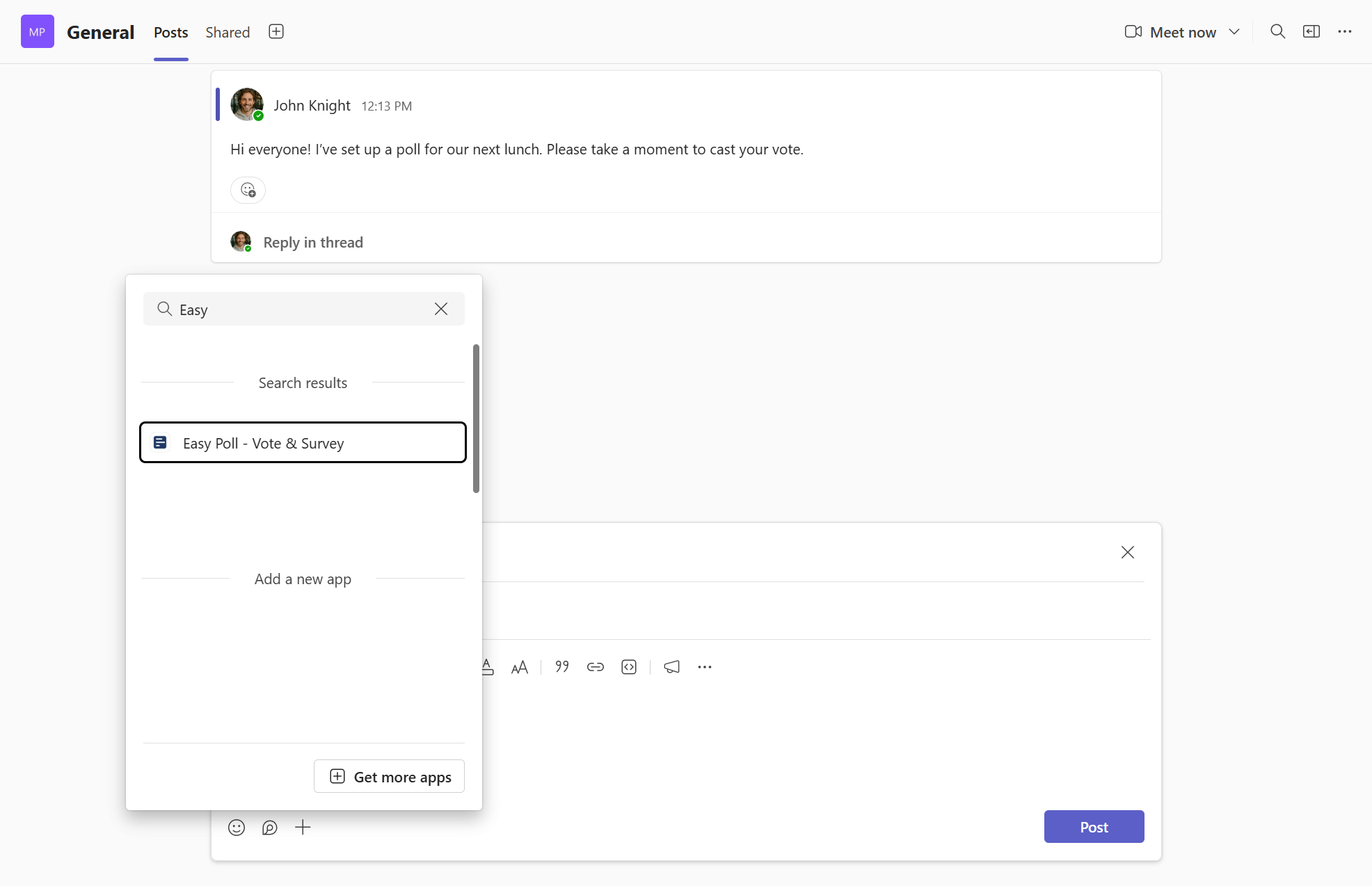
Easy Poll can add itself to the conversation when you create a poll. If you need to add it manually, open Apps in Teams, search for Easy Poll, and add it to the channel. See our guide to adding Easy Poll to Teams for the installation steps.
Once the app is available in the channel, open Easy Poll from the message area to start creating your poll.
Write your question and answer options
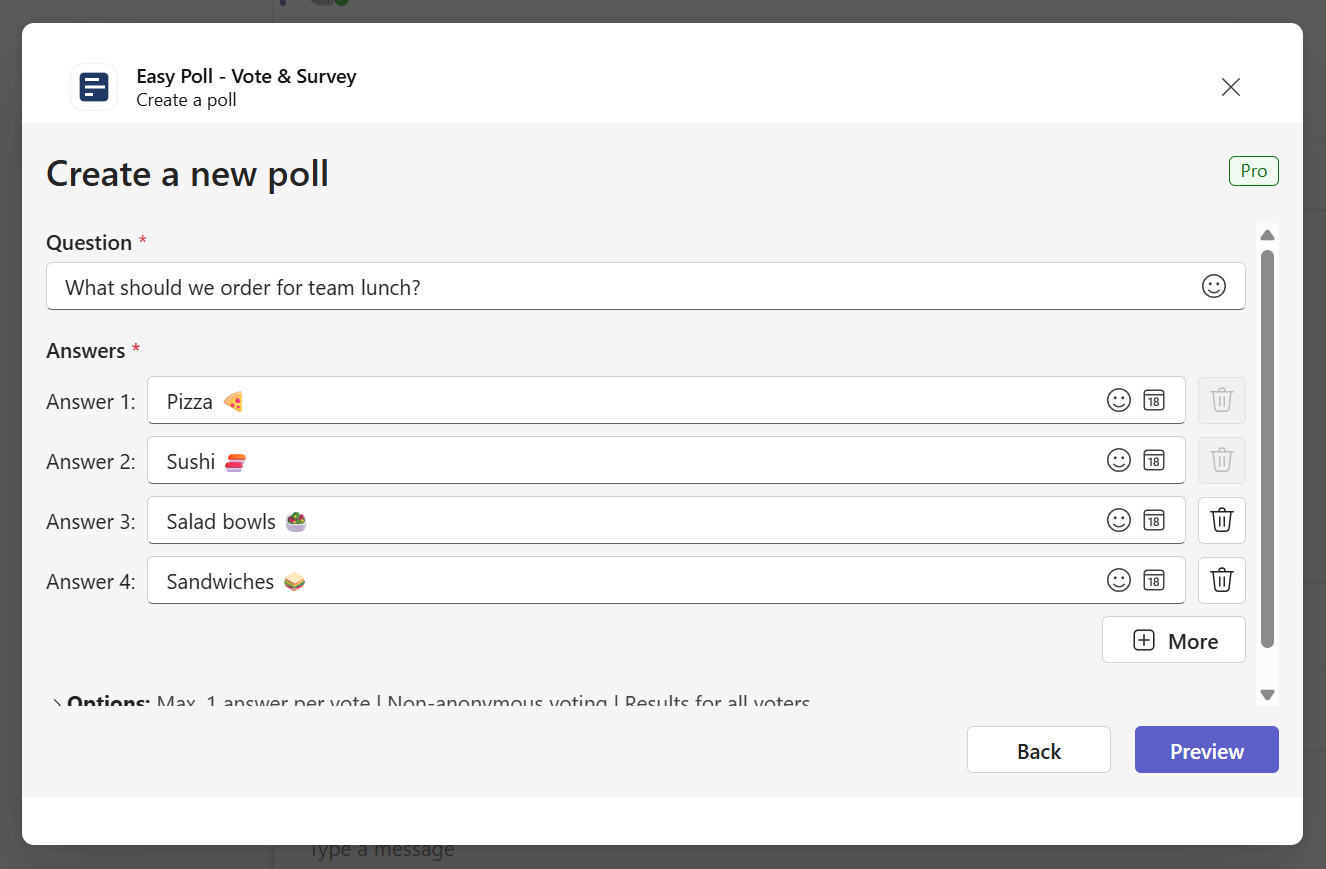
In Easy Poll, enter the question What should we order for team lunch?
Add four answer options: Pizza, Sushi, Salad bowls, and Sandwiches. Each option should be a distinct choice.
Keep the question short and easy to answer. For a quick team decision, one question with three to five options is a useful starting point.
Review and post the poll
Before posting, take a moment to check the question, answers, and destination. A quick review saves you from asking the team to vote on an unclear or incomplete poll.
Check these four things:
- The question is clear and asks about one topic.
- The answer options are spelled correctly.
- You're posting in the right Teams channel.
- The options cover the answers your team is likely to give.
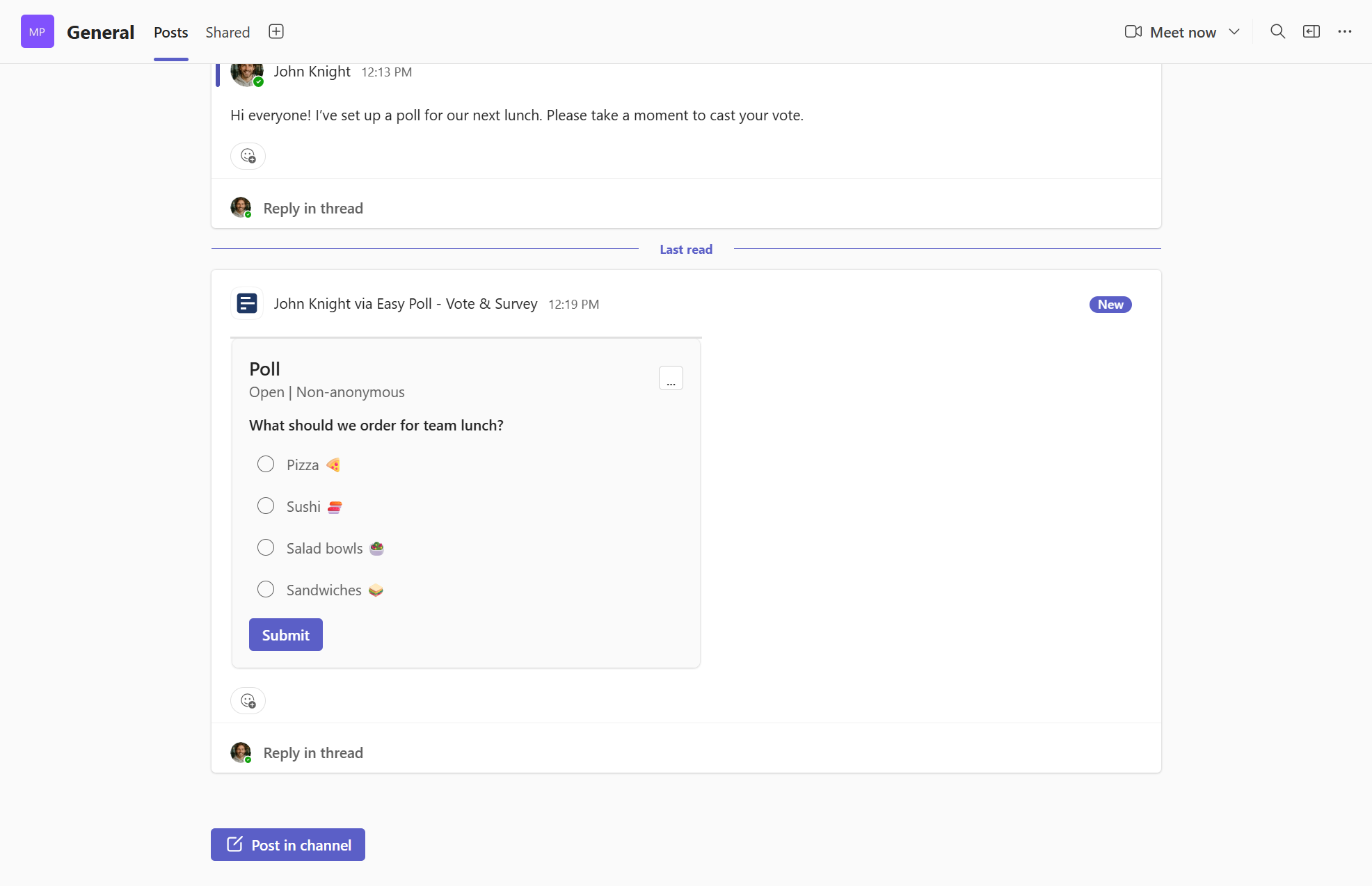
When you're happy with it, post the poll. Easy Poll publishes a poll card in the channel conversation, with the question and answer options ready for your team.
Let your team vote in Teams
Team members can vote directly on the poll card without leaving Microsoft Teams.
For our lunch poll, each person chooses an answer such as Pizza or Sushi. The choices stay visible in the conversation, making it easy for colleagues to join in.
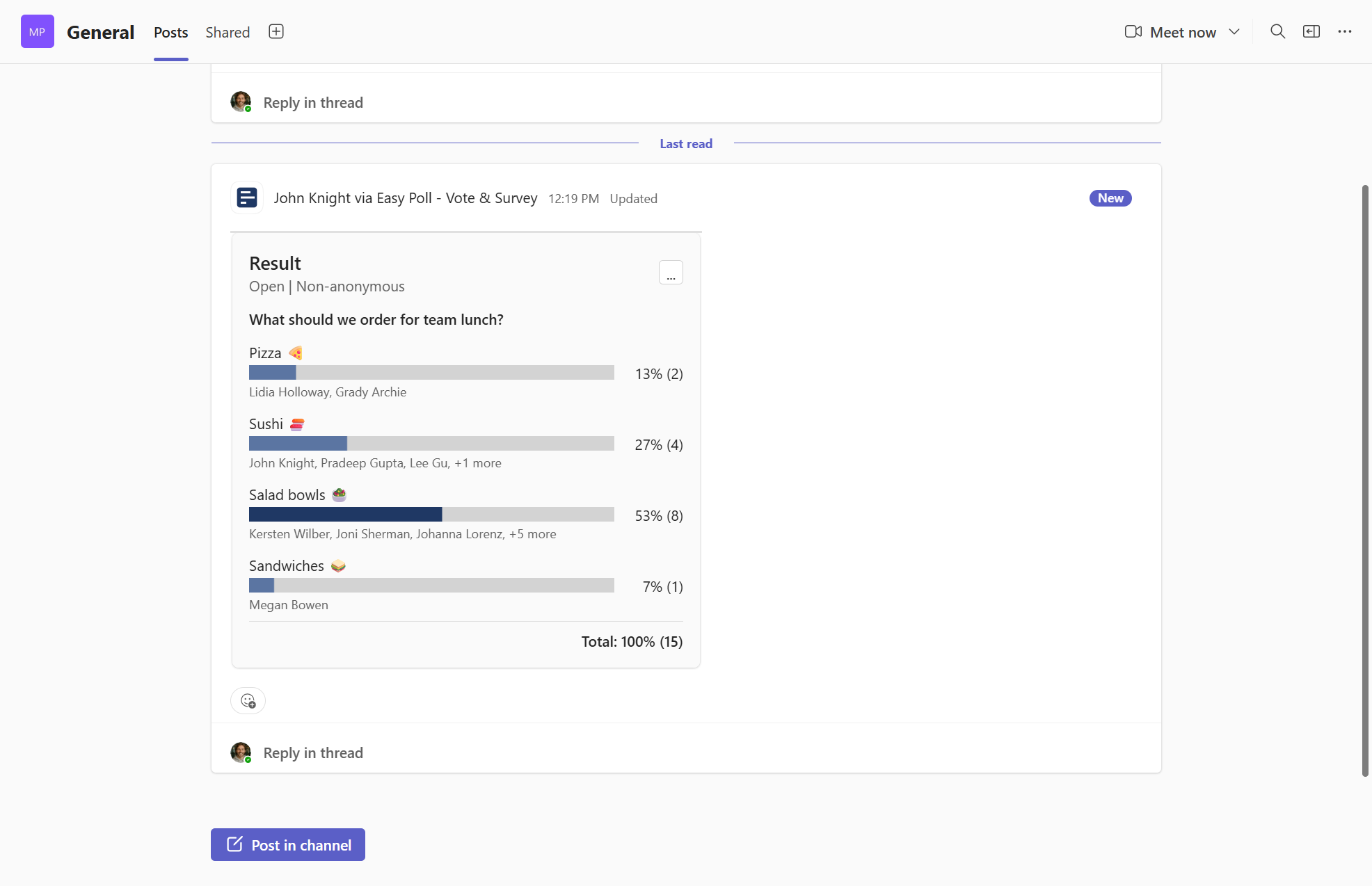
Follow the poll results as votes come in, then use the team's responses to make your decision. The same workflow works for feedback, preferences, and quick check-ins.
Five tips for better Teams polls
Make your poll easy to understand and worth answering. These small choices help you collect useful feedback:
Ask one question at a time
Keep each poll focused. Ask "What should we order for lunch?" separately from "When should we meet?" so people know exactly what they're voting on.
Use clear answer options
Write distinct choices that are easy to compare. Avoid overlapping options or wording that could mean different things to different people.
Keep the choices manageable
Three to five options are usually enough for a quick team decision. Give people useful choices without making the poll hard to scan.
Make the team's input count
Use polls for real decisions, feedback, preferences, and check-ins. People have a reason to respond when they can see how their input will be used.
Ask where the conversation happens
Post a project poll in the project's channel, or a team decision in the team's channel. Put it where the right people will see it.
What can you use Teams polls for?
Once you've created your first poll, try the same approach whenever you need a quick answer from your team. Here are six practical starting points:
Meeting times
Offer a few time slots and find out which one works for the team.
Meeting feedback
Ask what was useful after a meeting or what colleagues would change next time.
Team events
Let the team choose an activity, lunch option, or event preference.
Project decisions
Gather opinions on priorities or choose between several proposed options.
Quick check-ins
Ask a short question to understand how the team is doing.
Remote and hybrid feedback
Collect input from colleagues working in different locations, in the Teams conversation they share.
Ask the same question regularly? Learn how to create and share poll templates so you can reuse your setup and let colleagues help review the results.
Frequently asked questions about Teams polls
Yes. Easy Poll works in Teams chats and meetings as well as channels. Open Easy Poll from the message area of the conversation where you want to collect votes. This guide uses a channel as its example.
No. Voting and participating in Easy Poll polls are always free and don't require a license. The poll creator's plan determines the limits that apply to the poll. See the Compare Easy Poll plans for details.
Open Apps in Microsoft Teams, search for Easy Poll, and add it to the conversation where you want to use it. Our guide to adding Easy Poll to Teams walks you through the process.
Yes. Save a reusable poll template, then create a new poll from it whenever you need fresh responses. See how to create and share poll templates, including sharing templates with colleagues.
Ready to try it?
Create your first Teams poll
Start with the lunch example or a question your team needs answered today. Add Easy Poll, enter your question and choices, and post the poll so colleagues can vote in the conversation.
Easy Poll helps you create and manage polls directly in Microsoft Teams. Gather opinions, collect feedback, and make informed decisions with your team or organization.
