

Some questions come up again and again, from meeting feedback to project check-ins and training evaluations. Rebuilding the same poll takes time, and small changes to the wording can make the results harder to compare.
With Easy Poll templates in Microsoft Teams, you can create a reusable poll template and share it with colleagues as co-creators. They can use the same template for future polls and, if you choose to share those polls too, review their insights and download the results.
This guide shows you how, using a simple meeting feedback example.
Why use shared poll templates?
Shared templates are especially useful when several people run the same kind of poll. A meeting facilitator can prepare a feedback question once and share the template with colleagues who lead future sessions.
Save time on repeat polls
Reuse the question and answer options instead of starting from scratch. You only need to update the details for the current meeting or project.
Keep feedback consistent
The same question and answer options make feedback from different sessions easier to compare. Changing what you ask or how people can answer changes what the results mean.
Share the work across your team
Adding co-creators gives colleagues access to the shared template. They can prepare polls using the agreed format when the usual organizer is busy or away.
Review results together
Share the new poll with the template’s co-creators so they can view its insights and download the results. Follow-up no longer depends on one person sending screenshots or exports to everyone else.
Sharing a template and sharing a poll are separate choices. A shared template lets colleagues reuse your questions. A shared poll gives them access to that poll’s insights and downloadable results.
How to create and share a poll template
If you are new to Easy Poll, start with our guide to creating a poll in Microsoft Teams with Easy Poll. For your template, choose a question your team expects to ask more than once.
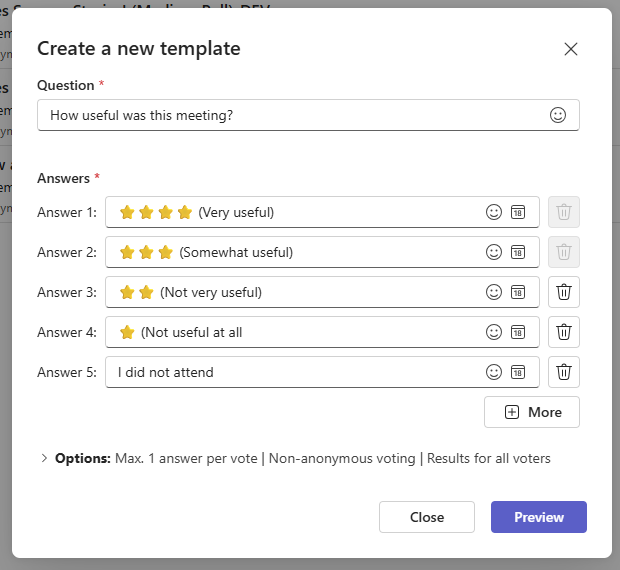
For this example, we will ask:
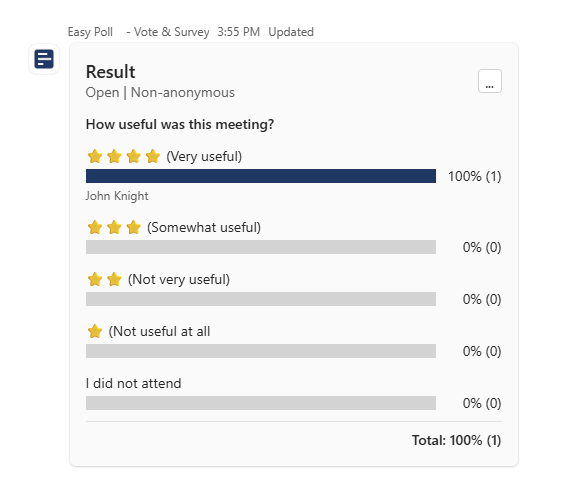
How useful was this meeting?
- Very useful
- Somewhat useful
- Not very useful
- Not useful at all
- I did not attend
The last option lets colleagues who missed the meeting respond without rating a session they did not join.
Create your poll template
Open Easy Poll in Microsoft Teams and create a template. Enter the meeting feedback question and its answer options, then save the template for reuse.
Keep dates and meeting names out of the template. Add those details when you create each poll, so the template stays ready for the next meeting.
Before saving, make sure the question covers one topic and the answer options are easy to tell apart. In this example, each participant should select the response that best describes their experience.
Add colleagues as co-creators
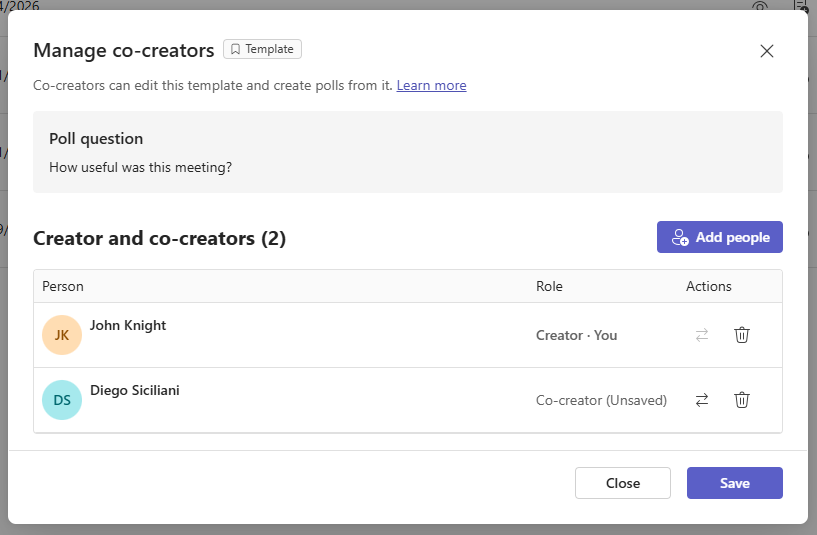
Open the template’s Manage co-creators dialog and add the colleagues who will use it. For a regular team meeting, that might be the facilitator and the person who covers for them when they are away.
These colleagues can use the shared template for future polls. Agree on its purpose and which wording should stay consistent, especially if different people will collect feedback over time.
Share the template with the colleagues who will prepare and run polls. Colleagues who only need to vote can respond when the poll is posted in Teams.
Create a new poll from the template
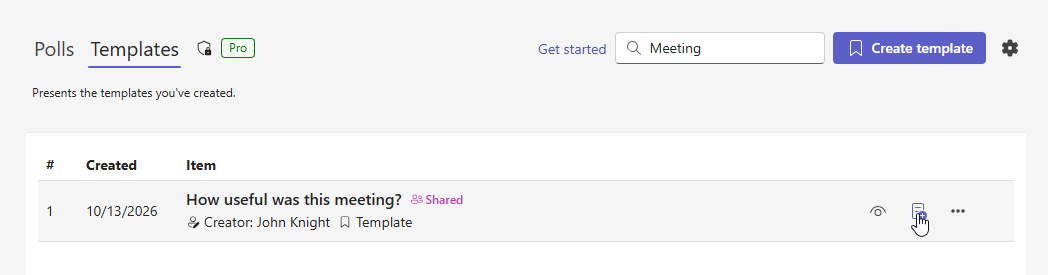
When you are ready to collect feedback, open the shared template and use it to create a new poll.
Review the question and answer options. For example, change the question to “How useful was our project meeting on 13 October?” Use the same answer options if you want to compare feedback across sessions.
The new poll collects feedback for this meeting. The template remains available for future polls.
Optional: Give co-creators access to this poll
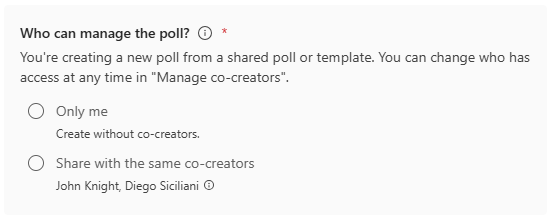
If your template’s co-creators should also review the results, enable the option to automatically share the new poll with them.
They can then view the poll’s insights and download its data, without waiting for the person who posted it to send an export.
Check which co-creators are included before posting. Use this option when the same people should have access to both the template and the new poll.
Post your poll and review the results
Preview the poll, check the intended audience, and post it in the relevant Microsoft Teams chat or channel. Participants can then vote where the conversation is already happening.
Once responses come in, co-creators with access to the poll can review the insights and download the data. Agree on who will follow up on the feedback.
For example, if several colleagues found the meeting unhelpful, ask what would make the next one more useful. You might move routine status updates into chat and use the meeting for decisions. Reuse the same feedback template after the next session to see how the responses differ.
Poll template ideas your team can reuse
Start with a small set of questions tied to decisions your team makes regularly.
| Use case | Example question | Suggested answer options | Possible co-creators |
|---|---|---|---|
| Meeting feedback | How useful was this meeting? | Very useful; Somewhat useful; Not very useful; Not useful at all; I did not attend | Meeting facilitators |
| Project check-in | How confident are you that we will meet the next milestone? | Very confident; Somewhat confident; Not very confident; Not confident at all; Not enough information | Project lead and deputy |
| Training feedback | How confident do you feel applying what you learned? | Very confident; Somewhat confident; Not very confident; Not confident at all | Trainers and coordinators |
| Team priorities | Which topic should we discuss at our next team meeting? | Current project blockers; Ways of working; Learning needs; Team coordination | Team leads and meeting organizers |
Treat these as starting points. Adapt the question to your team and agree on what you will do with the answers before collecting them.
Keep your shared templates useful
Keep wording consistent
Use the same question and answer options when comparing results. Also check how many people responded and whether you asked a similar audience. A small change in percentages may reflect a different set of participants.
Check each poll before posting
Review dates, context, audience, and co-creators. A reusable template makes preparation faster, but each new poll still deserves a quick check.
Assign someone to follow up
Shared access makes it easier to work together, but someone still needs to take responsibility for follow-up. Post a short update explaining what you learned and what you will change.
Frequently asked questions
A draft is an unfinished poll you plan to complete and publish. A template is a reusable starting point for creating multiple polls. Use a template when you expect to ask a similar question again.
When you create a poll from a shared template, you can choose to include the template’s co-creators. Enable that option if they should also see the poll’s insights and download its data.
Yes. Co-creators with access to a poll can review its insights and download its data. When creating a poll from a shared template, enable the optional sharing setting to give the template’s co-creators access to the new poll.
Template sharing and co-creator management are Pro features. Voting does not require a license. See the Easy Poll plans for current creator licensing and feature availability.
Create once. Share with your team.
Create your first shared poll template with Easy Poll
Start with one question your team asks regularly. Create a template, add the colleagues who help organize polls, and use it for your next meeting or check-in. If they should also review the feedback, share the new poll with them when you create it.
Easy Poll lets you create and manage polls directly in Microsoft Teams. Gather opinions, collect feedback, and make informed decisions with your team, right where your conversations happen.
